Managing macOS Active Directory configurations
macOS Active Directory Profile Support increases security by allowing admins to give domain users full access to a FileVault-encrypted macOS device using bootstrap tokens.
New macOS Active Directory configurations can be created in the library, then applied to devices. Active Directory configurations can also be applied to one or more devices using a policy.
To create an Active Directory configuration:
- Select Libraries in top navigation.
- Click the Active Directory icon.
- Click Add New.
- Fill in required information.
- Click Save.
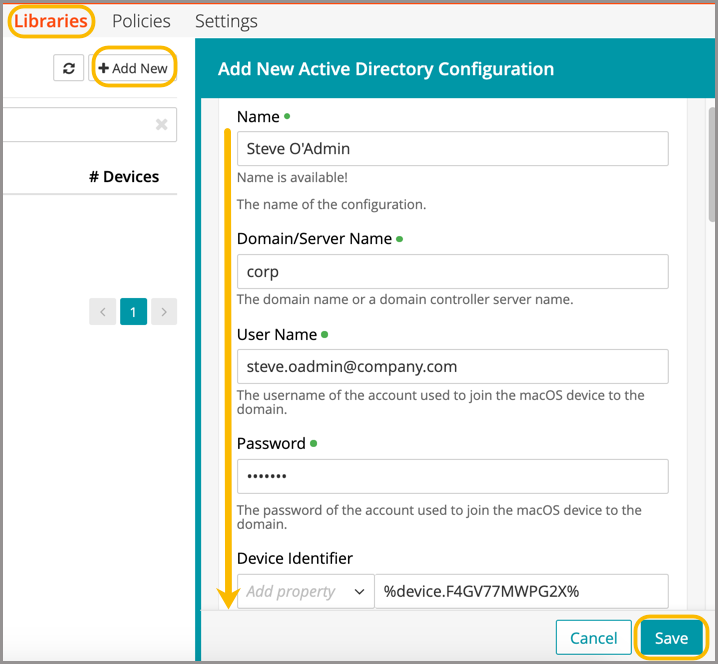
Mandatory Fields
- Name: The name of the configuration, so that a list of possible configurations can be filtered.
- Server Name: The name of the domain controller; for example: dc1.test.quest.com. The domain name can also be used here; for example: TEST.QUEST.
- Username: The name of the account used to join the macOS device to the domain.
- Password: The password of the account used to join the macOS device to the domain.
Once a configuration has been applied to a device, it can still be changed, but this could result in remote devices being unable to connect to the domain.
With the release of macOS 10.15 (Catalina), bootstrap tokens will be added to all DEP devices. These tokens give all network users (such as Active Directory users) automatic access to FileVault.
Confirm FileVault encryption and bootstrap token
To confirm successful enabling of FileVault encryption and the recording of bootstrap tokens in KACE Cloud, an admin can start by checking device inventory for the macOS 10.15 update.
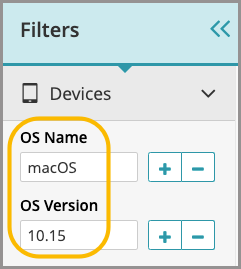
- Select the Devices section in top navigation.
- Filter inventory by the OS Name (macOS and OS Version 10.15).
To add an existing macOS 10.15 DEP device's bootstrap token to KACE Cloud:
- Run an inventory on the device.
This ensures that the enabled bootstrap token command is carried out.
- Open a terminal prompt and type the following command: sudo profiles install -type bootstraptoken.
To confirm that a token is working on a device:
- Log in to the device as an admin user.
- Open a terminal prompt and type the following command: sudo profiles status -type bootstraptoken
Example of command confirmation:

To confirm successful storage in KACE Cloud:
- From the Devices section, select a device.
- On the Summary tab, locate the Security section.
- Confirm Yes or No status for FileVault Encryption Enabled and Bootstrap Token Recorded.
.png)
Apply Active Directory configuration to a device
To ensure successful profile installation, be sure that the device can connect to the domain and that all settings are correct. If encountering an error, the device history keeps a record of the main errors reported from the macOS device. For troubleshooting domain joins, it is recommended that the macOS console be open when applying the profile.
If an Active Directory configuration is removed from a macOS device, it is automatically removed from the domain.
Troubleshoot administration groups issue
Since the release of macOS 10.13, the option to add administration groups to an Active Directory configuration is unavailable. If a device admin wants to grant admin rights to domain users, there are two manual options: they can grant access to groups either using a terminal prompt, or through system preferences, as applicable.
To grant access to groups using a terminal prompt:
- Open a terminal window.
- Type the following command: sudo dsconfigad -groups "TESTDOMAIN\Test Group 1, TESTDOMAIN\Test Group 2"
Once the command is applied, domain users who are members of these will have admin rights the next time they log into the device.
When running the terminal command, admin rights are successfully granted the next time a user in one of the groups logs in.
To grant access to groups using system preferences:
- Go to System Preferences.
- Scroll to the Users & Groups section.
- Select Allow user to administer this computer.
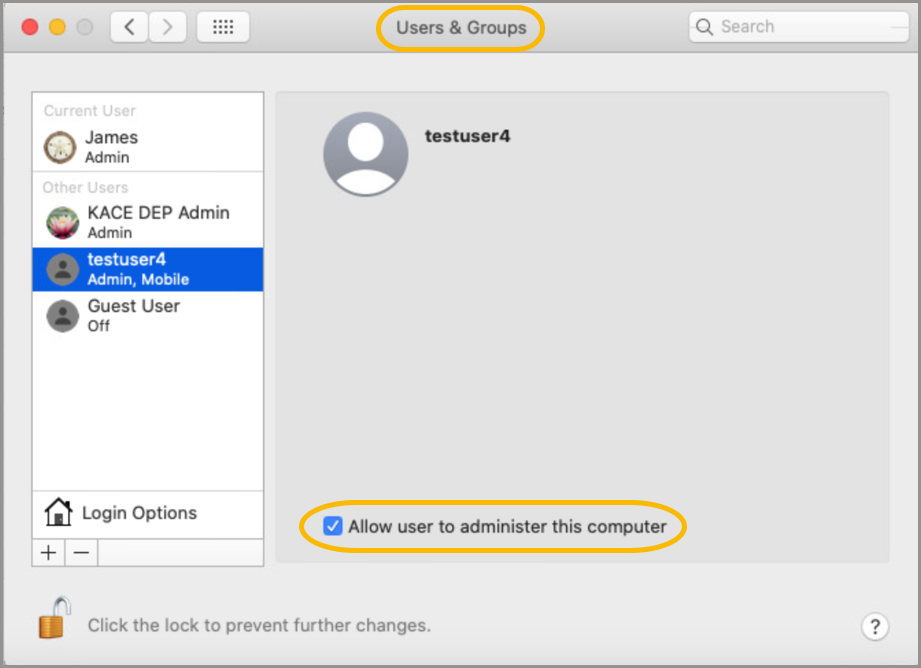
When using System Preferences > Users & Groups, admin rights will be successfully granted provided the user had previously logged in to and rebooted the device.